Using Auto-Focus
ACP has built-in support for the free FocusMax autofocus tool, written by Larry Weber and Steve Brady, as well as the PlaneWave PWI focusing tool provided with PlaneWave's mount/telescope systems. If you have a focuser that has an ASCOM driver, you can use FocusMax or PWI together with ACP.

Do not attempt to use ACP's autofocus features until you can achieve reliable automatic focus virtually every time with PWI or FocusMax at any place in the sky. Plan to spend some up-front time getting familiar with your auto-focus tool. Both programs are sophisticated programs with lots of features.
ACP offers several ways to control autofocus, however if you have multiple filters it is recommended that you configure ACP with focus offsets and use periodic autofocus in your observing plans. See Using Filters. Alternatively, (or in addition to periodic autofocus) you can force autofocus to be done during observing at specific points in your observing plan (e.g. at filter switches) via the #autofocus directive. See Getting Started below.
ACP's unique adaptive autofocus feature monitors focus quality and refocuses your imager only when needed. At present this depends on MaxIm DL's half-flux diameter measurements. This measurement is not reliable enough when the image(s) contain large extended objects (galaxies, nebulae), so if you are an astro-imager, we recommend against depending on adaptive autofocus.
Getting Started
- Connect and install the software for your focuser. Make sure you can control the focuser using the software that comes with it.
- Install the ASCOM Focuser driver for your focuser, if necessary. Most focusers are covered by the set of drivers that come with the ASCOM Platform, however.
- Go to the ACP Getting Started page and run the FocusMax test in step 3 of Software Installation Checks. If needed, install or update your FocusMax. Don't continue here until you know that the current version of FocusMax or PWI is installed.
- In FocusMax's Telescope setup, select the ACP Telescope Hub (ASCOM) as the telescope type. This is essential! If you try to use FocusMax as a hub between ACP and your scope, then ACP will not be aware of the slews performed by FocusMax, and will not be able to track the flip state of German mounts. In addition, if you are using the ACP Pointing Corrector, you will want to give FocusMax the benefit of these corrections by attaching it to ACP's hub. Do not use FocusMax as a telescope hub!
PWI already knows what is going on with the mount so you needn't be concerned with that.
If you are using FocusMax, it has two places where a Chooser window appears. One is for selecting the
focuser type; the other is for selecting the
telescope type. In this step you are selecting the
telescope type. If you can't find the ACP Hub, you are probably looking at the focuser Chooser (which should be set for your specific focuser type).
- Enable and configure your chosen focus tool for your observatory. This will probably take some effort and time if you're a newcomer to this. Stick with it. The documentation for the focusing programs are minimal, so experiment, read, experiment, and eventually you'll get there. Do this with ACP running and being used as the telescope connection per the above step!
- Using the included documentation, configure and test the focus program for your focuser and MaxIm DL. Do not go any further until you can achieve a successful hands-off autofocus with the program!
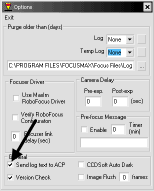 In FocusMax, select the Open menu, Options (the last menu item in FocusMax). In the Options window (shown at right) turn on Send log text to ACP. This will cause FocusMax's logging to be included in your ACP run logs, very handy when diagnosing focus problems! Close the Options window. PlaneWave provides this automatically, so you don't have to set any options.
- If needed Start ACP and connect to your scope and camera, so it's ready to run and image.
- Go to ACP's Preferences window, AutoFocus tab, and enable FocusMax. Leave AcquireStar off for now.
- Under real skies, run the AutoFocus.vbs script from ACP's console. If all is well, you should observe an autofocus cycle being performed successfully.
- Slew the telescope to several random places in the sky. It's entirely unnecessary to go to M-objects or bright stars. Again, run the AutoFocus.vbs script from ACP's console. FocusMax should complete successfully every time!
- If you have a filter wheel and multiple filters, run the FocusOffsets.vbs script from the console. See Using Filters. This will set up ACP to adjust focus between filter changes automatically.
- You can also optionally enable Adaptive autofocus if you want ACP to focus whenever it thinks it needs to. This is in ACP's Preferences window, AutoFocus tab. Fill in the FWHM growth percentage, a good place to start is 50%. This will cause ACP to autofocus whenever the FWHM exceeds 50% above the last autofocus FWHM.
- If you have narrowband filters, or an unusually sensitive camera or large scope, you can override ACP's focus star selection to use brighter or fainter stars. For more information see Using Filters.
Routine Use With ACP
Once you have ACP and FocusMax set up per the preceding section, using autofocus with ACP is easy. It is recommended that you include periodic autofocus in your observing plans (#afinterval), but you can force ACP to refocus any time you want. You can also set it to run when your FWHM gets above a certain value (adaptive autofocus). Just a hint: Some people focus way too often. Try reducing the frequency of your autofocus runs.
We've found that starting FocusMax by hand, when you start ACP, is best. It doesn't matter which one you start first (ACP or FocusMax). Just start FocusMax yourself.
Known Bad Bright Stars
ACP's logic for selecting a nearby "bright" star can use a file of known bad bright star locations. If the file BadBrightStars.txt exists in ACP's config file folder (Public Documents\ACP Config), ACP will read its list of RA/Dec coordinates. If any candidate stars lie within 5 arc minutes of a coordinate set in that file, those stars will be ignored. Use this to prevent ACP from using stars you discover are ill-suited for autofocus (doubles, in crowded field, etc.).
The format of the BadBrightStars.txt file is plain ASCII text. A semicolon starts a comment; the semicolon and everything to the right on the line is ignored. Blank lines are OK and are ignored. A live line consists of a right ascension value, a TAB, and then a declination. In other words, the file is tab-delimited. The RA and Dec values may be in decimal or sexagesimal, and a wide variety of sexagesimal formats are OK. Example:
;
; Bright stars list
;
21:34:09.1	+12:54:21
7.48954218	-2.0873106
ACP run logs include the RA/Dec of the selected star for autofocus, so if you suspect a bad star caused a focus failure, you can get the RA/Dec of the star, then go take an image at that location. If the star is indeed bad, add it to your list. It's hoped that people will share their bad star discoveries via the DC-3 Dreams Communication Center.
Copyright © 2000-2016, Robert B. Denny, Mesa, AZ